This is how to install and set-up the latest Lubuntu software pack on to the NAND Flash on the Cubietruck from a Mac OS X computer.
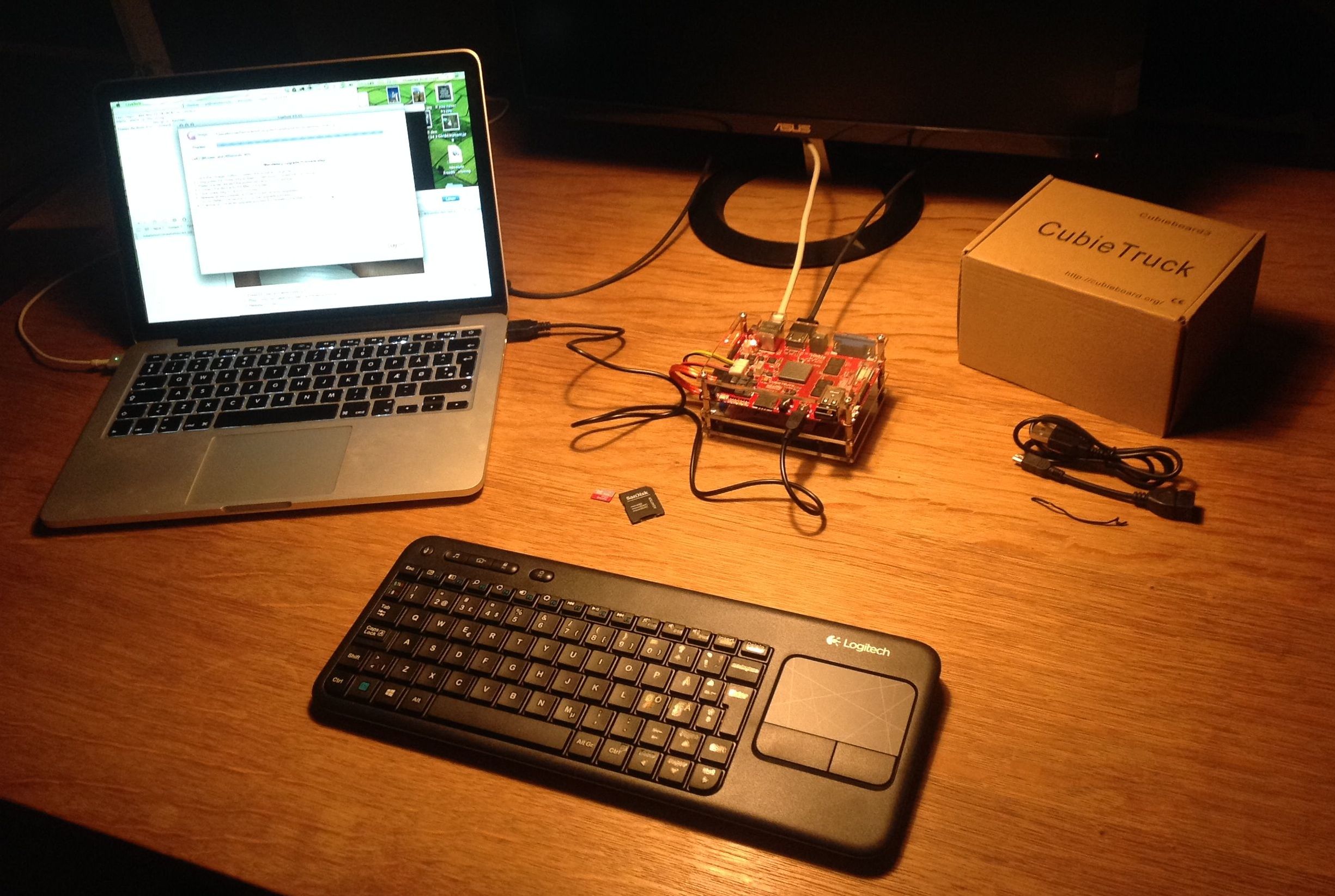
Cubietruck
The Cubietruck is a 5V 2A single-board computer “SBC” / PC on Board “PCB” – much like the Raspberry Pi that has taken the World with a craze – but the Cubietruck is just faster, better and stronger.. In realty Cubietruck is more like a real Mini PC.
The Cubietruck is based on the dual core Cortex-A7 (912MHz each) ARM Allwinner CPU with 2 GB Ram. Cubietruck has 8 GB onboard bootable NAND flash memory and it is expandable with a micro sdcard up to 32GB. You can connect a monitor/TV via the VGA or HDMI interface. The Cubietruck comes equipped with both Wifi and Bluetooth, Gigabit Ethernet, 2 USB 2.0, 1 Micro USB, OTG, SPDIF, IR, and Headphone. You can easily add a and fit a 2.5 inch Hard Disk Drive to the Cubietruck out the box. Power?DC5V @ 2.5A with HDD and support Li-battery & Real Time Clock “RTC”.
The Cubitruck was released for sale on the 31th. of October 2013 from cubieboard.org.
Supported Operative Systems “OS”:
- Android
- Fedora
- Lubuntu
- Lbuntu Server
BTW: I look forward to an Arch Linux distro for Cubietruck ( you can check here: )!
The Cubietruck comes with Android preinstalled on the NAND – and it works out the box. Cubietruck looks after a bootable OS on the Micro SDcard before it boots from the NAND flash memory.
There are 3 different ways to install and run Lubuntu on the Cubietruck:
- NAND flash
- Micro SD card
- 2.5 HHD / SSD ( or a 3.5 HHD with an external power supply )
1. NAND Installation of the Lubuntu Server
You need this in advance:
- A Mac running a newer version of OS X with access to the Internet. I am doing this from a MacBook Pro Retina running OS X version 10.9 Mavericks.
- An assembled Cubietruck with incl. cables with 2.5 HHD
- USB Power supply 5v 2/2.5A.
- An ethernet Internet connection.
Get the software
Download and install the LiveSuit NAND installer in your app folder: LiveSuit_ForMac.zip
Download the latest Lubuntu NAND image for Cubietruck: Cubietruck Lubuntu Desktop Releases or A20-Cubietruck Lubuntu Server Releases
Connect the mini USB to your mac (mac only).
Open LiveSuit and Select the downloaded Lubuntu NAND image (.img)
 Enter FEL Mode
- Press FEL key and hold it in
- Plug in mini usb cable to the Cubietruck and wait for the prompt
- Release FEL key
Flash to Board
When you see the prompt, you have entered FEL mode. Select Yes to continue.
That’s it!
2. Customizing
Changing Boot Parameters
# mount /dev/nanda /mnt
# vi /mnt/uEnv.txt
Change it as you want!
# umount /mnt
# sync
# reboot
Update Lubuntu Sever
Normally its good practice to update and upgrade your system to the latest version.
# apt-get update; apt-get upgrade
# apt-get install python-apt
NB! You need to install the python-apt package to use do-release-upgrade.
# do-release-upgrade
Modify System Files
To change your local timezone, you need to edit the file /etc/timezone.
# ls /usr/share/zoneinfo
Ex.: “Europe/Copenhagen”
Remove your old timezone link and make a new one.
# rm /etc/localtime
You can now create a symlink to the appropriate timezone information.
# ln -s /usr/share/zoneinfo/Europe/Copenhagen /etc/localtime
Change timezone ex. “Europe/Copenhagen”.
# nano /etc/timezone
( Use CTRL-x to exit, hit Y to save the file in nano. )
Change hostname /etc/hostname and the hosts file /etc/hosts .
# nano /etc/hostname
cubietruck
Change “Cubietruck” to the name you have in mind. I like cubietruck, so I keep it! 🙂
Edit the /etc/hosts file to reflect the hostname.
# nano /etc/hosts
Modify the line of the file to read:
127.0.0.1 localhost
127.0.1.1 yourhostname
If not already so replacing your hostname with the name you put in /etc/hostname.
Mac OS X specific linux software & daemons
In order for your Mac’s to automatically see and discover services on your Cubietruck it is convenient to install Apple’s zero conf network service “Bonjour” or “Rendezvous” and Netatalk AFP
#apt-get install avahi-daemon
You can verify the install of Bonjour on Cubietruck in your with ping on your Terminal App on your Mac OS X computer.
# ping cubietruck.local
If you want to connect you Cubietruck with Apple’s file service AFP “AppleTalk” so your Cubietruck automatically shows up in Finder, you need to install the open source version Netatalk.
#apt-get install netatalk
You will find the Netatalk config files in /etc/netatalk.
Security
Its good practice to change the root password straight away.
NB! You should also remove the default user linaro and and disable ssh for root.
# passwd
Create a new regular user :
# adduser
Follow the prompts; use whatever username you’d like to log in. The next available UID is fine. Use the default users as the initial group.
Add the user to the Super User Do list.
Logout, and relogin as the regular user:
# logout
login: newuser
password: yourpassword
3. Moving Rootfs From Nandflash To Hard Drive
Installation
Prepeare the drive for rootfs
Th drive must have a primary partition formated with filesystem “ext4”. You can use the Linaro user interface DISK app, gparted or use the following shell commands to partition your HDD.
List all available drives:
# fdisk -l
Choose the drive you want to make changes to (e.g. sda):
# fdisk /dev/sda
Use “p” (print partition of a drive), “d” deletea partition or “n” (create new partition). The partition should be of type “83”.
Format the partition for rootfs with EXT4 filesystem:
# mkfs.ext4 /dev/sda1
Copying Rootfs
Assuming that /dev/sda is the hard drive we want to install.
$ sudo su - root
# dd if=/dev/nandb of=/dev/sda1 bs=1M
Changing Boot Parameters
$ sudo su - root
# mount /dev/nanda /mnt
# nano /mnt/uEnv.txt
root@cubietruck:~
console=tty0

extraargs=console=ttyS0,115200 hdmi.audio=EDID:0 disp.screen0_output_mode=EDID:1280x720p50 rootwait panic=10 rootfstype=ext4 rootflags=discard

nand_root=/dev/nandb
Change the contents of uEnv.txt from “nand_root=/dev/nandb” to “nand_root=/dev/sda1“. And check the changes with cat command.
# cat /mnt/uEnv.txt
Unmount the partition.
# umount /mnt
Flush the file system buffers with sync.
# sync
# reboot
That’s it!
References:
Cubieboard3: Cubietruck is all ready with links software etc. cubieboard.org
LiveSuit Guide cubieboard.org
Moving Rootfs From Nandflash To Hard Drive cubieboard.org
Tutorials for Cubietruck cubieboard.org
FAQ specs and faq’s cubieboard.org
A20-Cubietruck specs from SUNXI
Cubieforum for Q&A’s
Linux:
The Debian Administrator’s Handbook by Raphaël Hertzog and Roland Mas
www.lubuntu.net
www.ubuntu.com
manpages.ubuntu.com
How to use Logical Volume Manager (LVM) to grow etx4 file systems online techrepublic.com
InstallingANewHardDrive – Installing a new HHD, help.ubuntu.com
You must be logged in to post a comment.